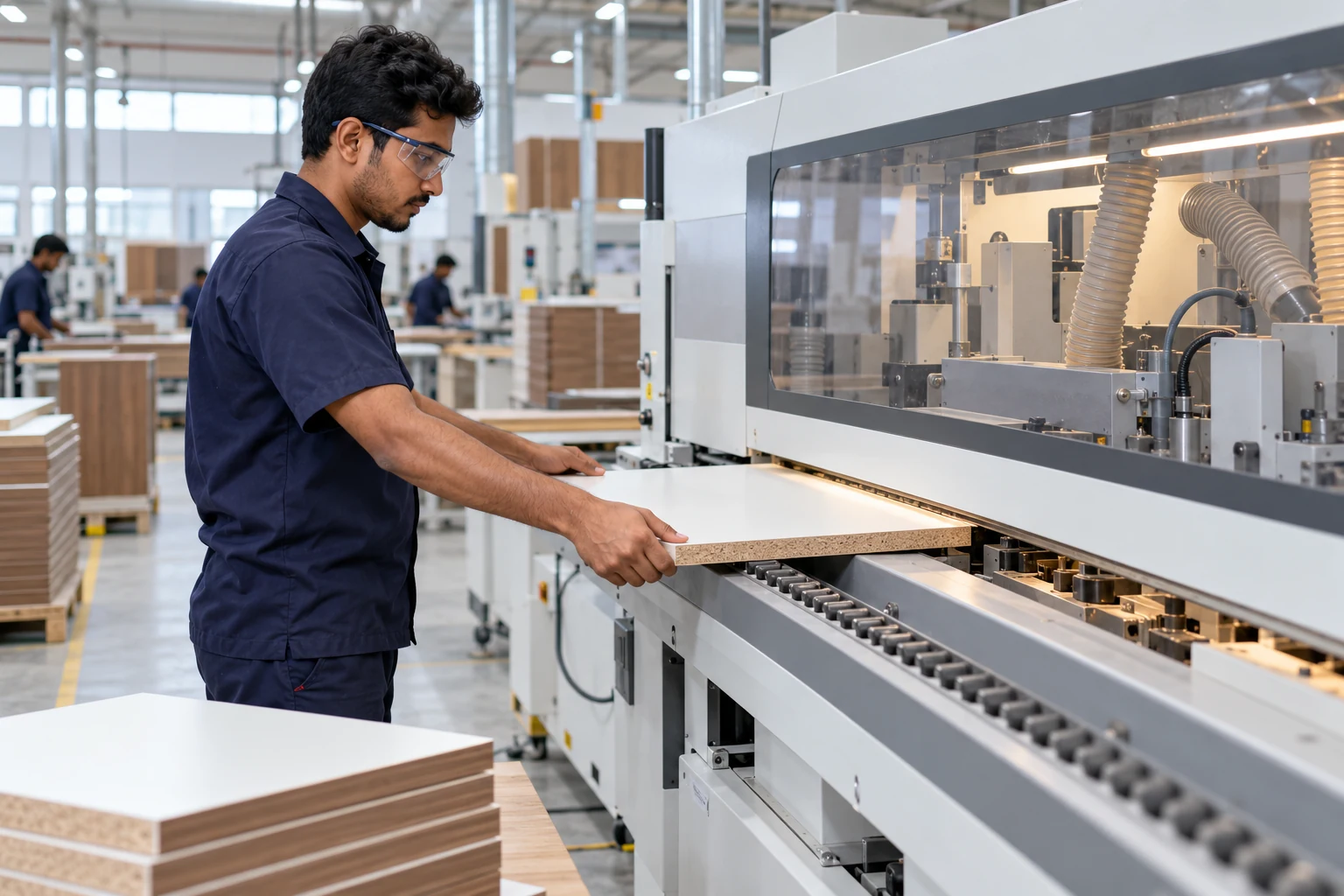
FINISH & PREPARE
Every edge, accounted for.
Complete edge banding, record the piece and pass it to Minifix.
Explore edge banding
Connect your people, designs and every piece of furniture. One clear workflow, from the first measurement to the final site handover.
Discover the teams behind the work. Sample logos below show how your customer brands will appear.
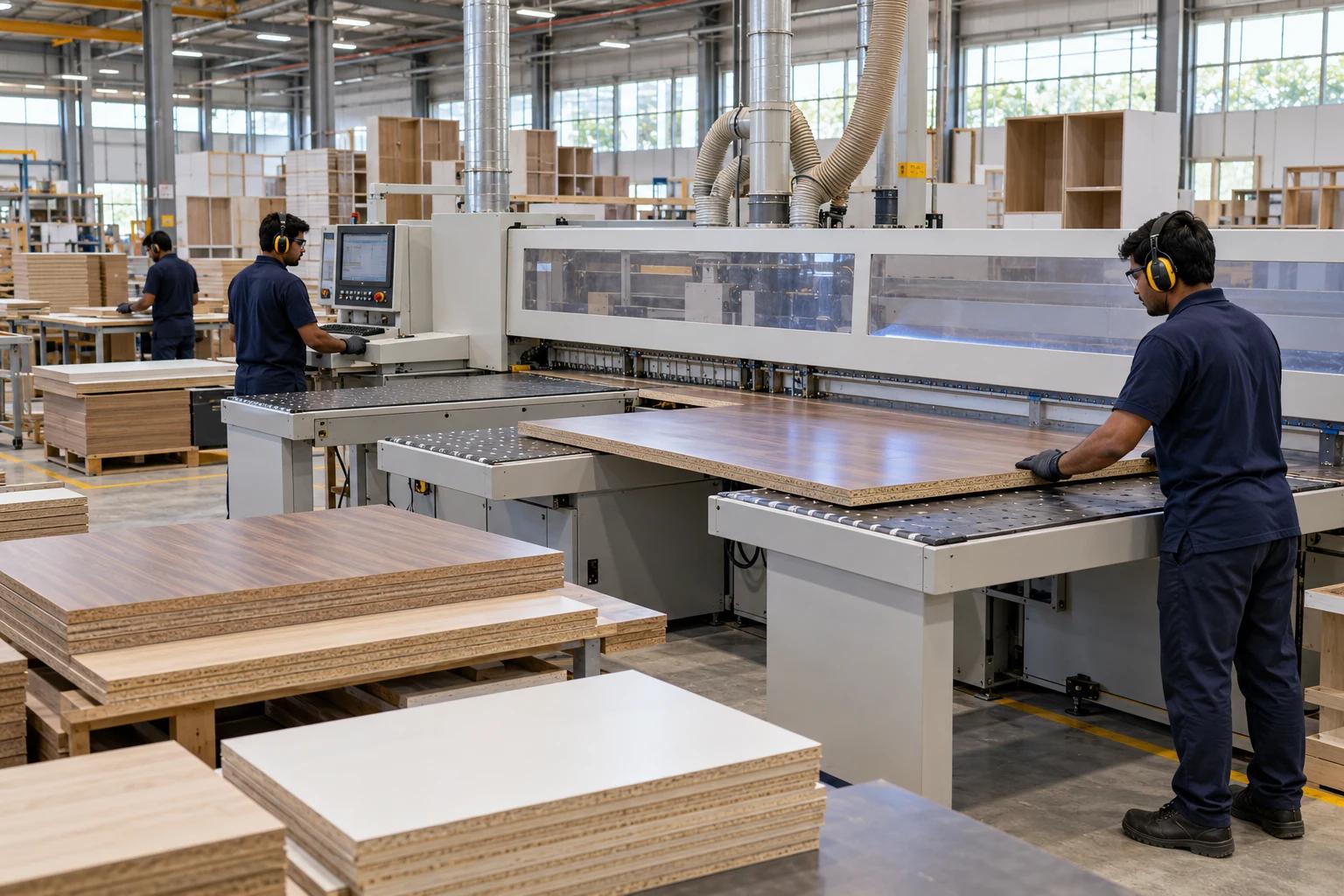
From a freshly cut panel to a labelled packet, each team carries the same project forward.
 IKF सेतु
Complete edge banding, record the piece and pass it to Minifix.
Explore edge banding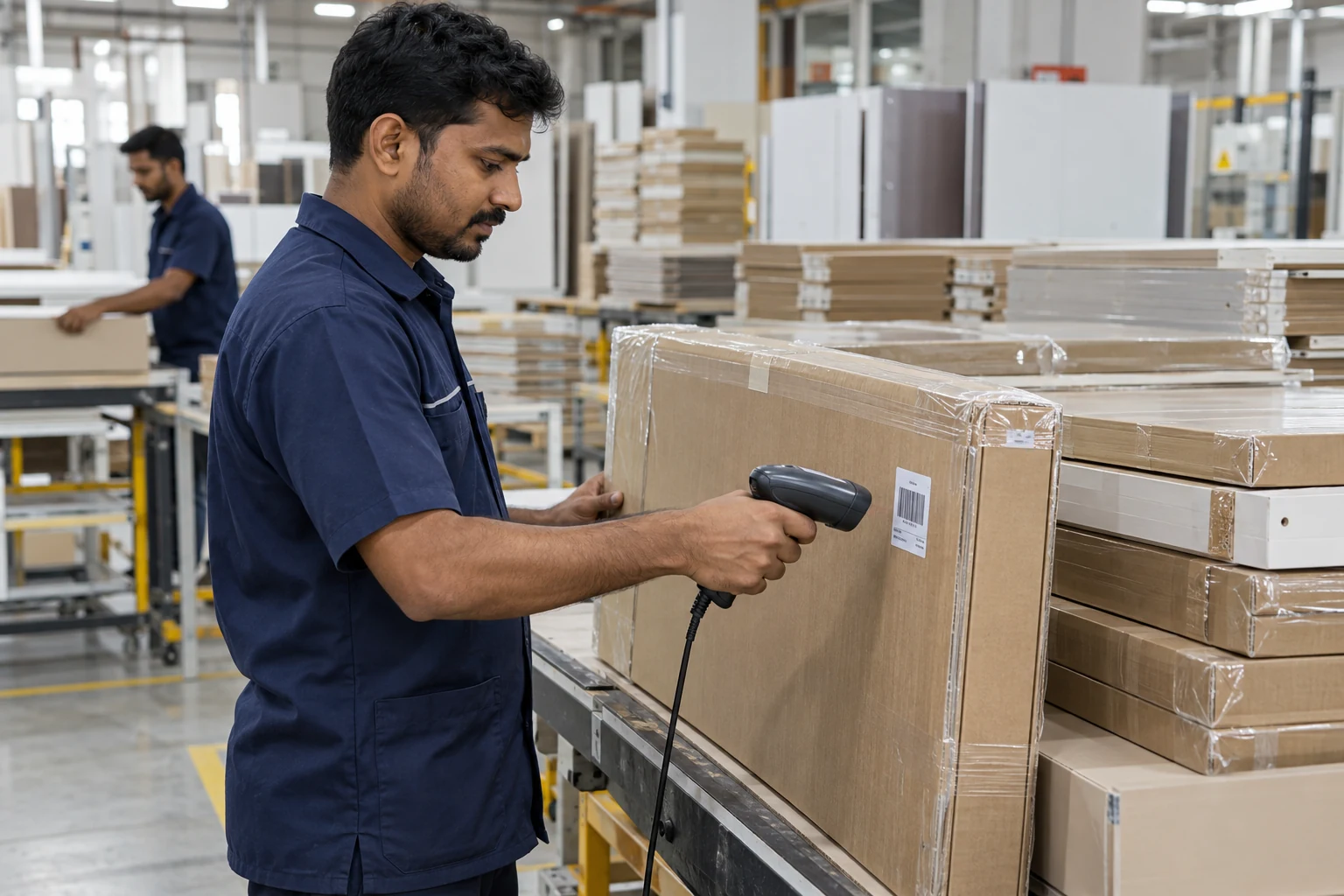
Connect pieces to packets, then track dispatch and site receipt.
Try the tracking demoFactory visuals are illustrative of the production workflow.
Follow one project through 10 connected steps — from the owner creating a client to the supervisor receiving every packet on site.
A clear start for every project.
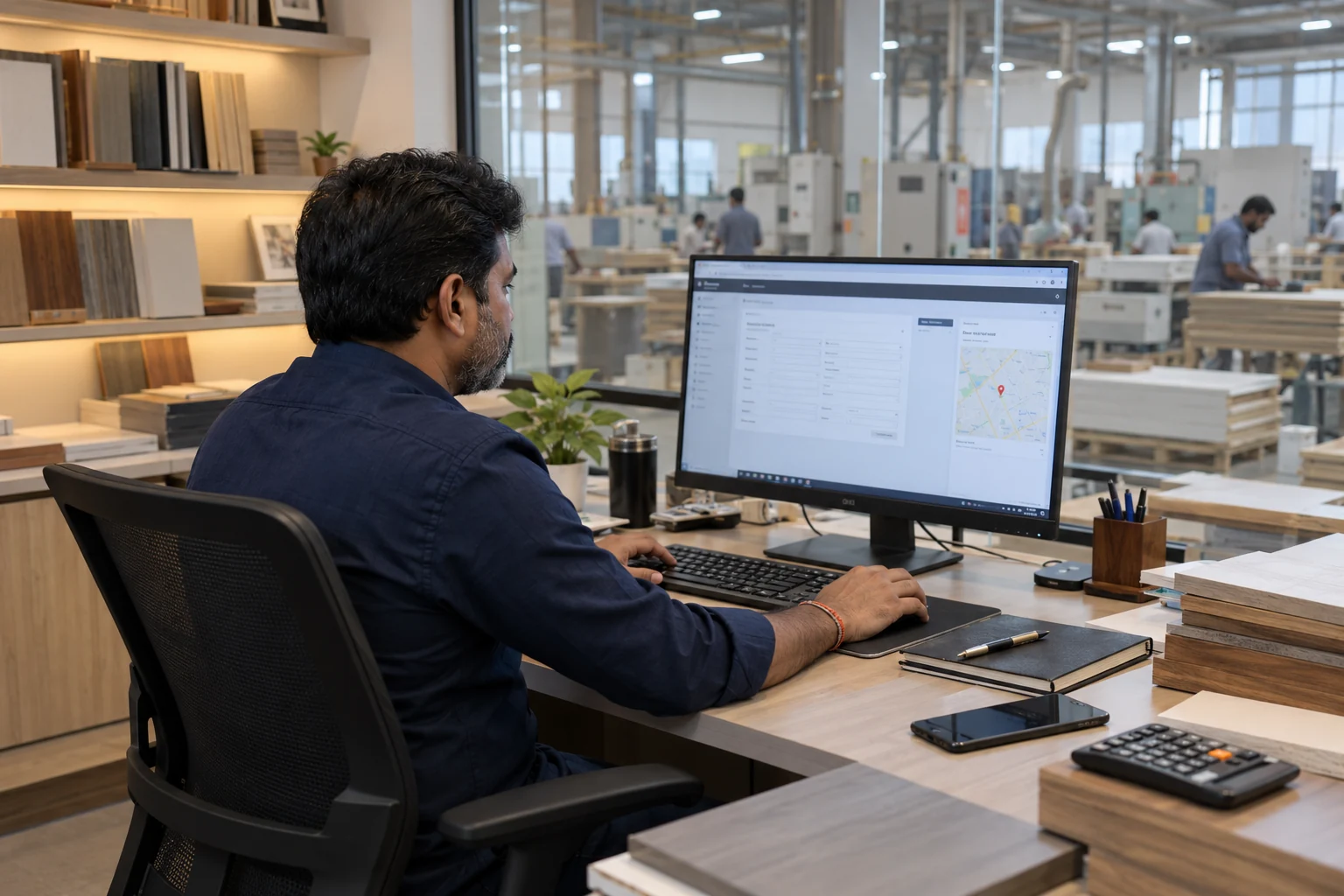
क्लाइंट बनाएं और सुपरवाइज़र को काम सौंपें।
The owner creates the client and project, adds the site location and assigns the supervisor. The new client appears in the assigned supervisor’s dashboard.
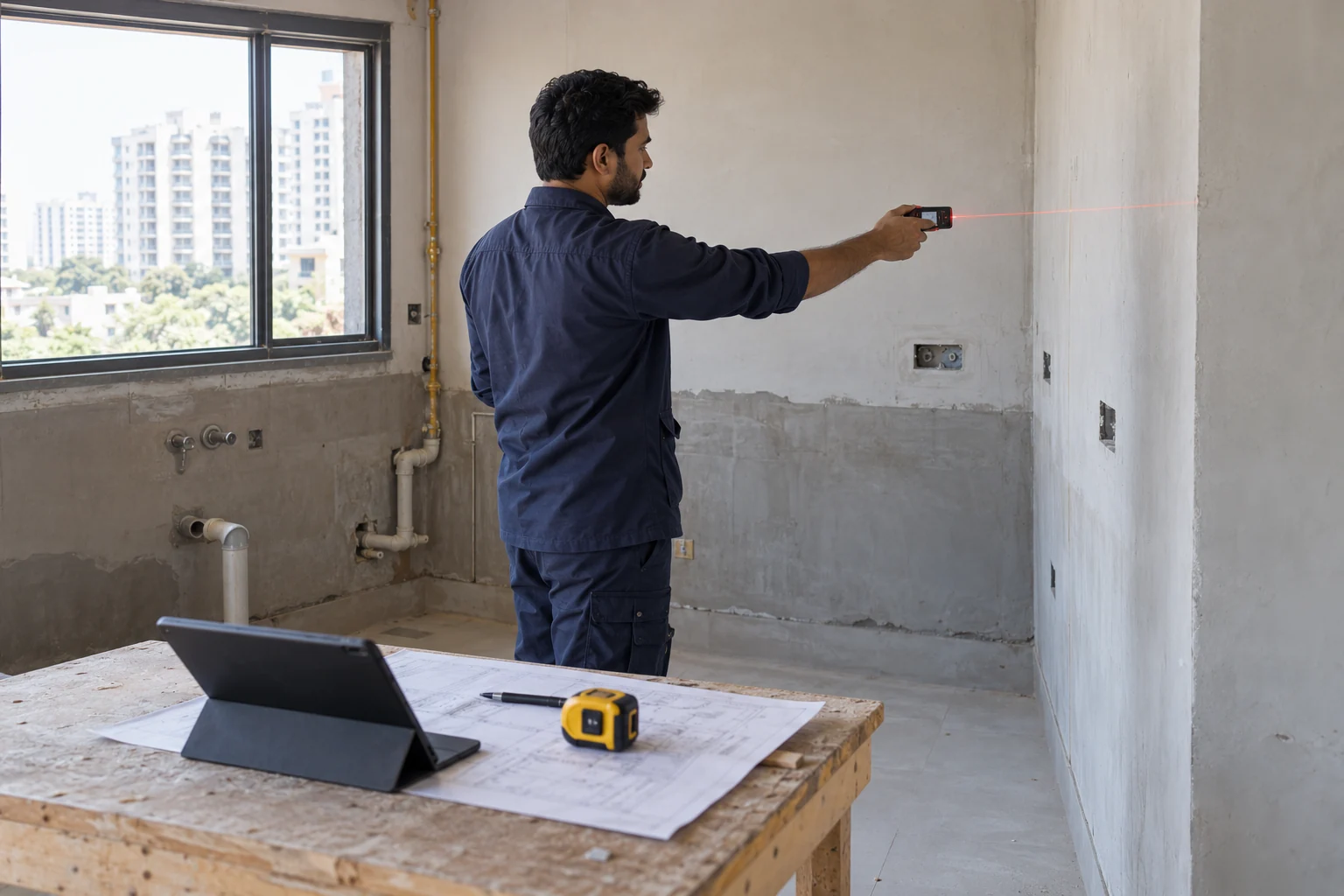
लोकेशन से साइट पर पहुँचें, मेजरमेंट और फोटो अपलोड करें।
The supervisor opens the assigned client, uses the saved location to reach the site and takes measurements. Measurements, photos and videos are uploaded from the supervisor’s panel.
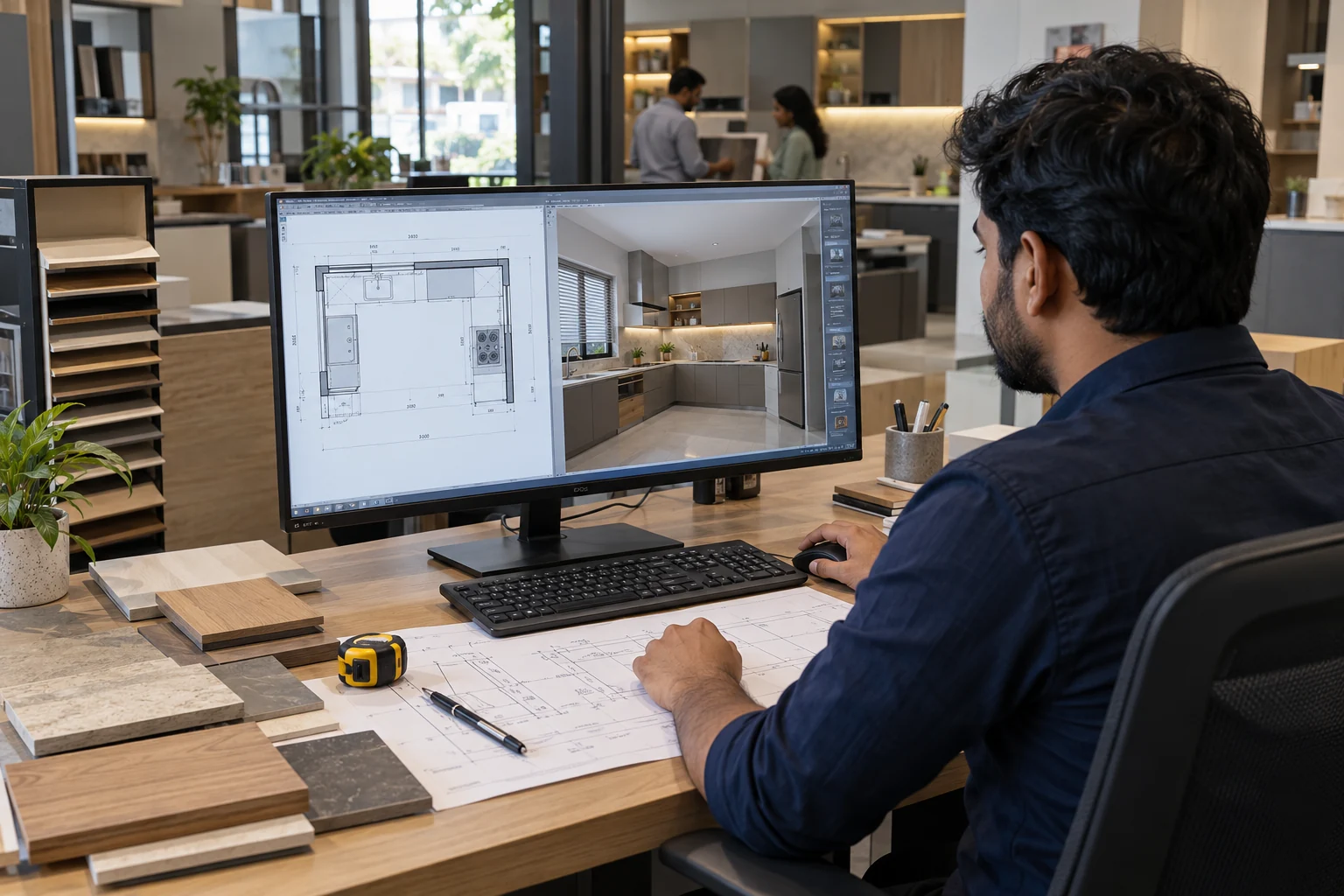
साइट मेजरमेंट के अनुसार डिजाइन बनाएं और अपलोड करें।
The designer receives the supervisor’s measurements and site references, prepares the design and uploads the completed drawings and design files.
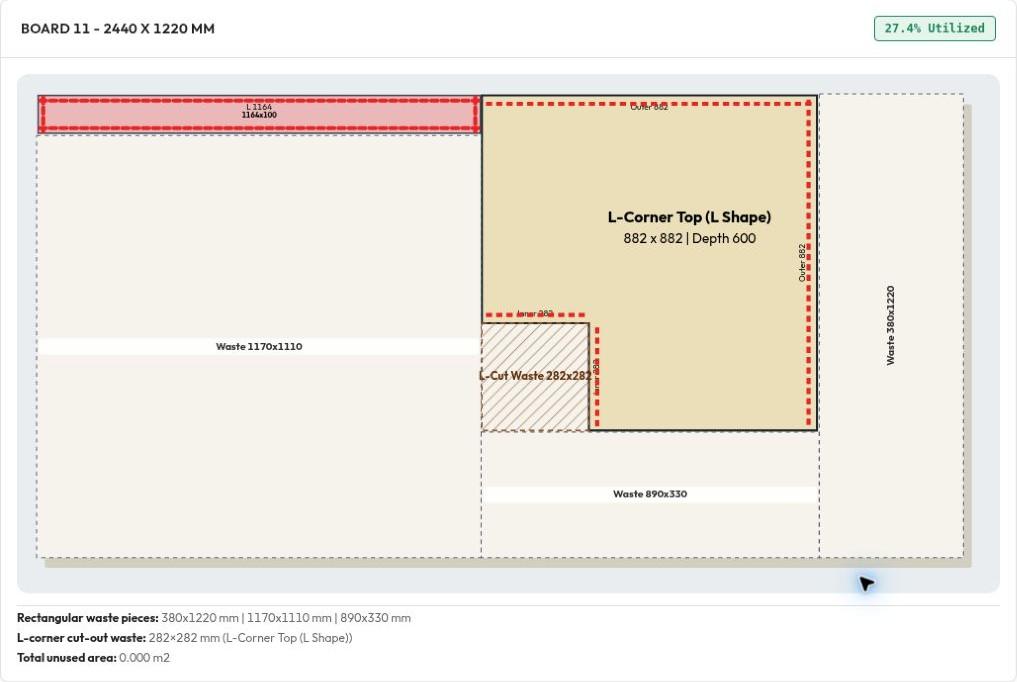
डिजाइन और मेजरमेंट जाँचकर कैबिनेट व कटिंग लिस्ट तैयार करें।
The production manager checks the measurements against the design. Once confirmed, cabinet units are prepared in IKF SETU and the required production documents are generated.
One identity for every piece.
पीस काटें, बारकोड लगाएं और पूरा होने पर स्कैन करें।
The cutter works from the cutting list, prints and attaches a unique barcode to each cut piece, and scans completed pieces. Unfinished pieces remain marked Pending.
एज बेंडिंग पूरी करें और हर पीस को स्कैन करके आगे भेजें।
The operator receives cutting-confirmed pieces, applies the specified edge banding and scans each completed piece. Pieces still awaiting banding remain pending.
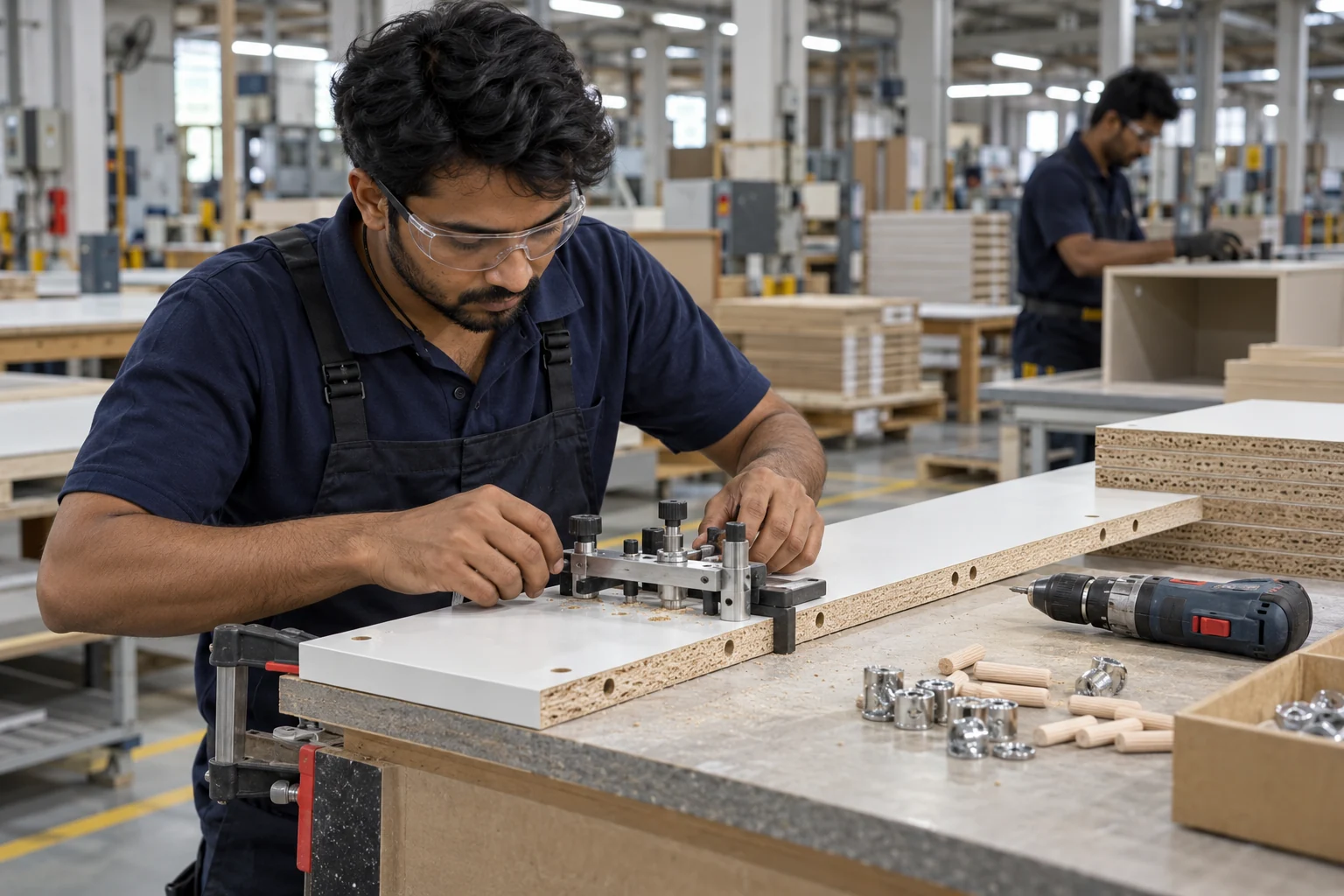
मिनिफिक्स का काम पूरा करके पीस स्कैन करें।
The Minifix operator completes the required drilling and fitting preparation, then scans each finished piece. Scan-confirmed pieces become available to the packing team.
हर पीस रिसीव करें, फिर 4–5 पीस का अलग बारकोड वाला पैकेट बनाएं।
First, the packing team scans each arriving piece to confirm what has been received and what is missing. Then 4–5 pieces are grouped into one packet with its own separate barcode.
Track packets through the final handoff.
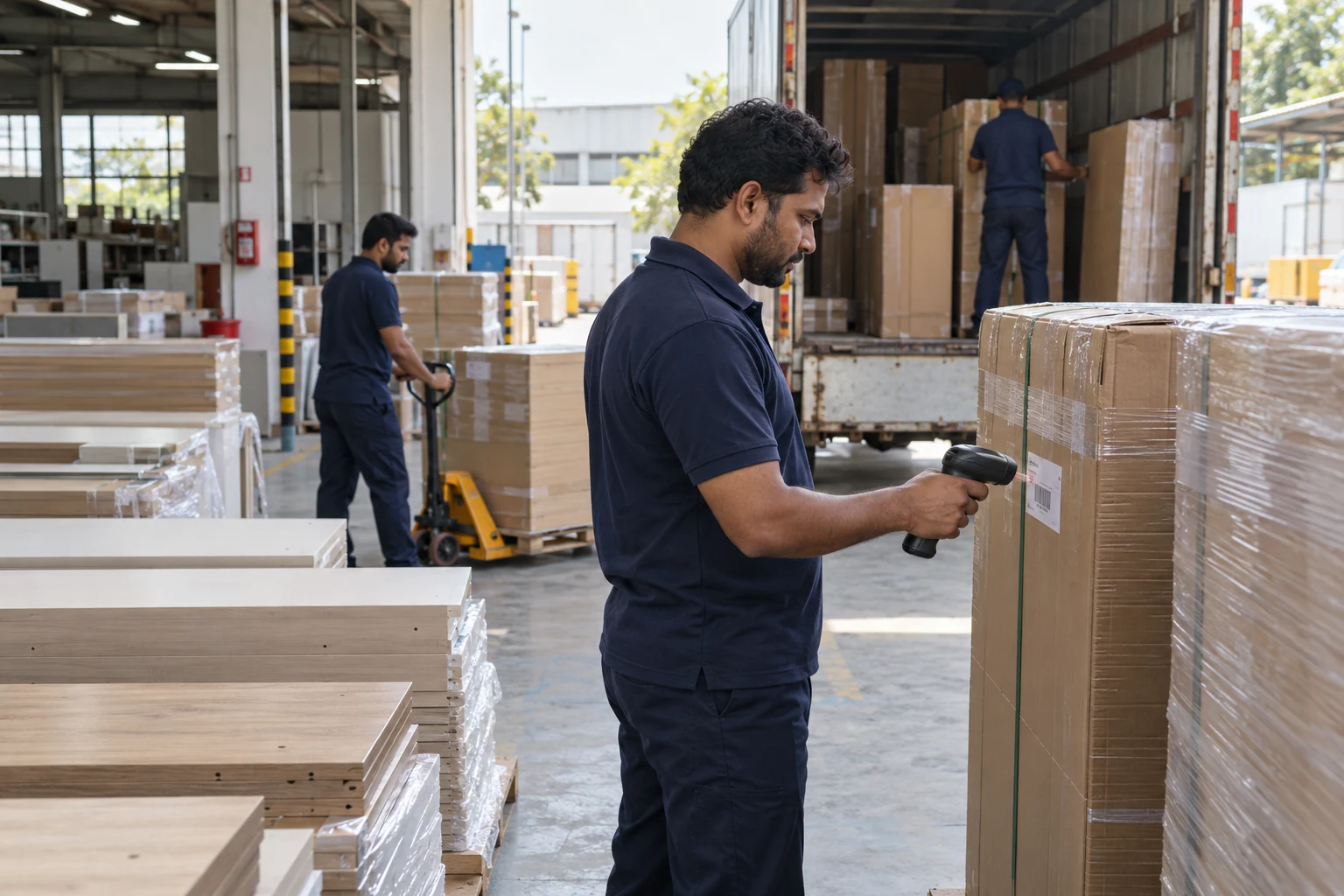
हर पैकेट को स्कैन करके डिस्पैच कन्फर्म करें।
Packed and scan-confirmed packets appear in the production manager’s dispatch queue. The manager scans each Master Packet code (PKT-XXXX) to mark it Dispatched, then uses Proceed to Supervisor for Receive.
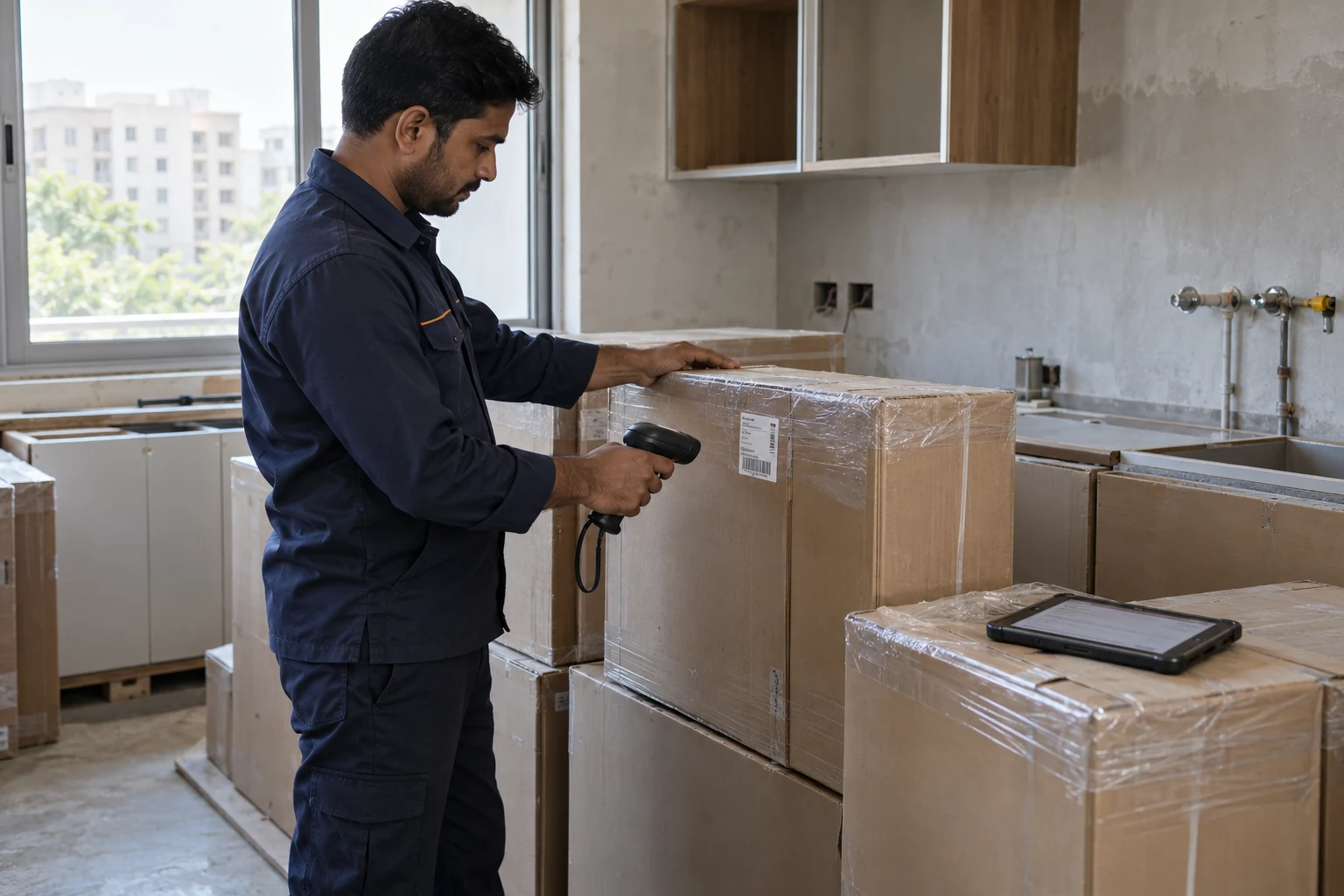
साइट पर हर पैकेट स्कैन करें और रिसीव मार्क करें।
The supervisor sees the dispatched packets in the receiving tab and scans each one as it arrives at the site. Scanned packets are marked Received; the rest remain pending.
Bring your material master, cabinet specifications and production documents into one organized workspace.
Plan parts across full stock boards and usable leftover cut pieces. Match material, thickness and available dimensions before placing parts in the board layout.
Maintain board codes, categories, thicknesses and rates. Record leftover dimensions in Cut Piece and use available cut pieces in the board layout.
Maintain hardware stock, specifications and rates in the admin panel. Add the selected hardware items to a project quotation.
Prepare cutting lists, board layouts, edge summaries and quotations for print or PDF.
Track individual pieces through cutting, edge banding and Minifix. Confirm their receipt at packing, group 4–5 pieces under a new packet barcode, then track that packet through dispatch and site receiving.
Try the interactive simulation below: each click advances the workflow to the next confirmation. No camera or physical scanner is required.
Open every team’s tab and follow who did what. Track designs, cutting lists, cut pieces and packet movement against the same project.
| TEAM TAB | WORK TO TRACK | EXAMPLE |
|---|---|---|
| Supervisor | Measurement uploads | 3 sites |
| Designer | Designs completed | 6 designs |
| Production Manager | Cutting lists prepared | 4 lists |
| Cutter Man | Pieces cut / total | 36 / 48 |
| Edge Banding | Pieces confirmed | 28 pieces |
| Minifix | Pieces confirmed | 24 pieces |
| Packing | Pieces received / packets packed | 24 / 5 |
| Dispatch | Packets dispatched | 4 packets |
| Site Receiving | Packets received | 3 packets |
| Accountant | Work-wise quotation, Excel and factory cost PDF | By work folder |
Review the person responsible, completed work and pending work at each stage. Scoped per organization.
Maintain hardware and board inventory in the cutting-list software. Carry selected hardware into quotations and put usable leftover panels back into board planning.
Create hardware brands and custom items, then maintain quantities and rates for the hardware your factory uses.
Maintain saved carcass, shutter and back-ply materials with codes, categories, thicknesses, descriptions and rates.
Save usable board remnants after cutting and make them available for another layout instead of treating every leftover as waste.
Finished cabinet pieces keep their production barcodes. Reusable board remnants are tracked separately as offcut stock.
See how furniture teams share their IKF SETU experience — from site measurement to production and delivery.
Demo gallery: video previews showing how feedback stories appear on the platform.
An illustrative owner story about following designs, production and site handoffs in one place.
A sample production story about checking measurements, planning cabinets and preparing cutting documents.
A sample packing story showing how piece identities stay connected to a packet barcode.
An illustrative site story about measurements and references reaching the designer together.
A sample factory story about confirming completed edge banding and sending pieces forward.
An illustrative delivery story about scanning incoming packets and keeping pending receipts visible.
The owner can access every team’s tab and review who completed each task, how many designs or cutting lists were prepared, how many pieces were cut or processed, and which packets are packed, dispatched or received. Pending work remains visible alongside completed work.
Yes. The admin panel maintains hardware inventory for selecting items and adding them to quotations. It also maintains full-board stock and usable leftover cut pieces. Suitable offcuts can be reused in board layouts after checking size, material, thickness, finish, grain and blade-gap requirements.
Modular furniture manufacturers and interior production teams who coordinate site supervisors, designers, production managers, cutting operators, edge-banding operators, Minifix operators and packing teams.
The supervisor adds site measurements, photos and videos. The designer uses this information to prepare and upload designs. The production manager then prepares the cutting list and production documents for the factory team.
Each cut piece has its own barcode. After cutting, edge banding and Minifix scans, the packing team scans incoming pieces to confirm receipt. Four or five pieces are linked to one new packet barcode. The packed packet is scanned, then scanned again at dispatch and site receipt.
The workflow brings together cabinet specifications, material and edge masters, cutting lists, board layouts, hardware, quotations and PDF reports. Work can be organized by kitchens, wardrobes, TV units, vanities, dressers and custom furniture.
Yes. Scroll through all ten illustrated stages above, or use the stage links to jump directly to a team. The tracking demo separates individual-piece confirmation, packing receipt, packet creation, dispatch and site receiving.
A clear connection between your teams, your material inventory and every packet that reaches the site.